We will go to SZ. 2015-12-31 01:00
@Shenzhen. 2015-12-31 10:40
@Panyu Square. 2015-12-31 23:20
stardust@live.com
We will go to SZ. 2015-12-31 01:00
@Shenzhen. 2015-12-31 10:40
@Panyu Square. 2015-12-31 23:20
stardust@live.com
Let’s Encrypt is a new Certificate Authority:
It’s free, automated, and open.
Anyone who has gone through the trouble of setting up a secure website knows what a hassle getting and maintaining a certificate can be. Let’s Encrypt automates away the pain and lets site operators turn on and manage HTTPS with simple commands.
No validation emails, no complicated configuration editing, no expired certificates breaking your website. And of course, because Let’s Encrypt provides certificates for free, no need to arrange payment.
This page describes how to carry out the most common certificate management functions using the Let’s Encrypt client. You’re welcome to use any compatible client, but we only provide instructions for using the client that we provide.
If you’d like to know more about how this works behind the scenes, check out our technical overview.
Note: Let’s Encrypt is in beta. Please don’t use it unless you’re comfortable with beta software that may contain bugs.
If your operating system includes a packaged copy of letsencrypt, install it from there and use the letsencrypt command. Otherwise, you can use our letsencrypt-auto wrapper script to get a copy quickly:
$ git clone https://github.com/letsencrypt/letsencrypt$ cd letsencrypt$ ./letsencrypt-auto --help
letsencrypt-auto accepts the same flags as letsencrypt; it installs all of its own dependencies and updates the client code automatically (but it’s comparatively slow and large in order to achieve that).
The Let’s Encrypt client supports a number of different “plugins” that can be used to obtain and/or install certificates. A few examples of the options are included below:
If you’re running Apache on a recent Debian-based OS, you can try the Apache plugin, which automates both obtaining and installing certs:
./letsencrypt-auto --apache
On other platforms automatic installation is not yet available, so you will have to use the certonly command. Here are some examples:
To obtain a cert using a “standalone” webserver (you may need to temporarily stop your exising webserver) for example.com and www.example.com:
./letsencrypt-auto certonly --standalone -d example.com -d www.example.com
To obtain a cert using the “webroot” plugin, which can work with the webroot directory of any webserver software:
./letsencrypt-auto certonly --webroot -w /var/www/example -d example.com -d www.example.com -w /var/www/thing -d thing.is -d m.thing.is
The this will obtain a single cert for example.com, www.example.com, thing.is, and m.thing.is; it will place files below /var/www/example to prove control of the first two domains, and under /var/www/thing for the second pair.
To renew a certificate, simply run letsencrypt again providing the same values when prompted. Let’s Encrypt is working hard to fully automate this process and we apologize for the inconvenience until this functionality is ready.
The following command can be used to revoke a particular certificate.
$ letsencrypt revoke --cert-path example-cert.pem
For more information on the official client, please see the full documentation.
stardust@live.com
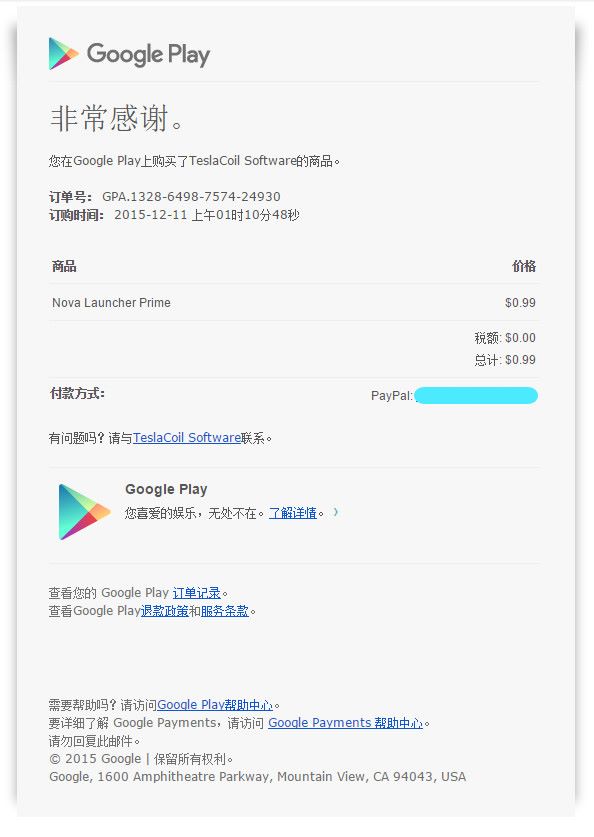
前面3.99订了Apex Launcher Pro,昨天删掉用起来原生启动器,但一堆的应用图标太丑太不协调,就又搜了下Nova,准备用免费版,结果直接看到0.99的价格。
stardust@live.com
过了这一天,又一个周岁。感谢Acui,感谢Zoe。

昨天还是穿短袖衫的温度,今天降了些温度,天气是很舒服的清凉,一直飘飘洒洒着毛毛细雨。
傍晚走路去超市,一路单曲循环着一首歌,烟雨蒙蒙的感觉。
^_^ 感谢建设银行、感谢QQ邮箱、感谢泰康人寿、感谢广东建行、感谢139邮箱、感谢弘康人寿……
stardust@live.com
